How To Edit A Government PDF Form Online For Free
A complete guide to editing official government PDFs for free. Discover how to handle restricted forms, and fill out complex fields without the need for expensive software or subscriptions.

Background
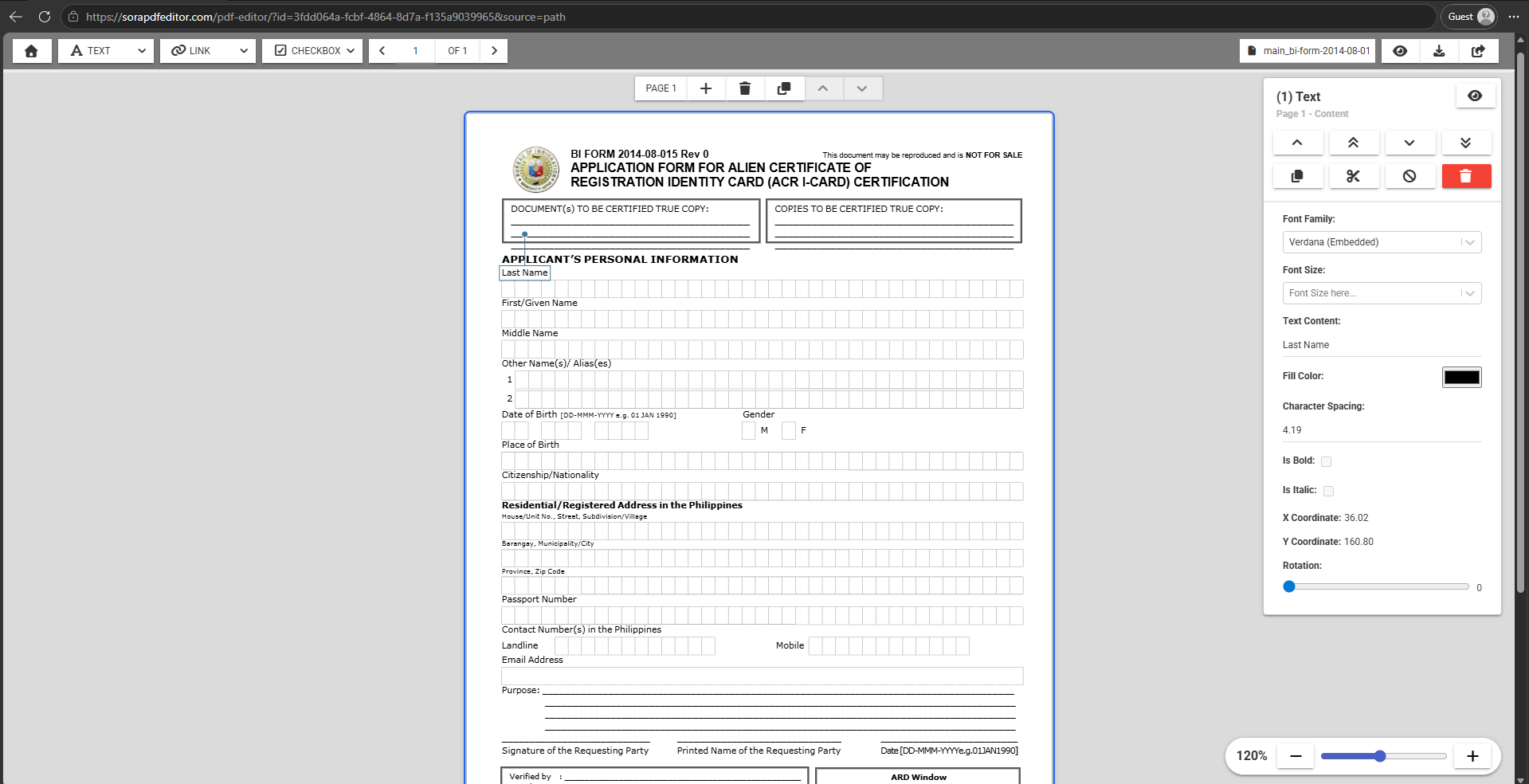
Government PDF forms are some of the most frustrating documents to fill out digitally. Many are scanned images or vector-based layouts with individual letter boxes for each character, meaning standard PDF viewers cannot fill them the way a regular form field works. You cannot just click and type. The document was built to be printed, hand-written, and submitted, not filled digitally.
The Edit PDF tool works around this by letting you place text objects anywhere on the page, adjust their size, font, and spacing to match the form's layout, and then draw or attach your signature. Everything runs locally in your browser, no uploads, no account, no watermark.
- Open your government PDF in Edit PDF
- Use the Text tool from the toolbar dropdown to place text over each field
- Use character spacing to spread letters across individual letter boxes
- Use the Signature tool to draw and place your signature
- Click Download to save your completed form, no account required
Steps
1. Open the form
Go to the Edit PDF tool and upload your government PDF. The form will render on the canvas exactly as it appears on paper, with all its boxes and labels visible. All objects in the PDF are rendered as either a content, annotation or acroform. For government forms, most of the fields are usually texts, vectors and AcroForm objects.
2. Fill text fields
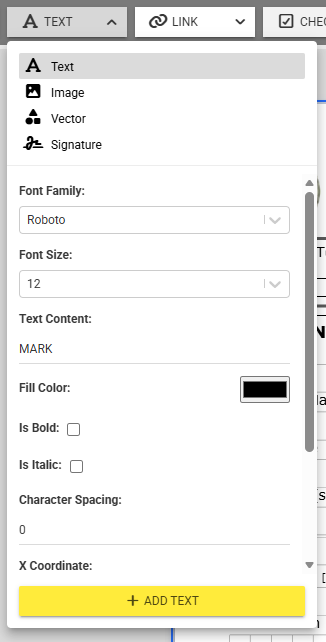
To add text over a form field, open the toolbar content dropdown (the arrow next to the active tool label) and select Text. Set your text content, font, and size in the panel, then click Add Text to place the object on the page. You can drag it to position it precisely over the field you want to fill.
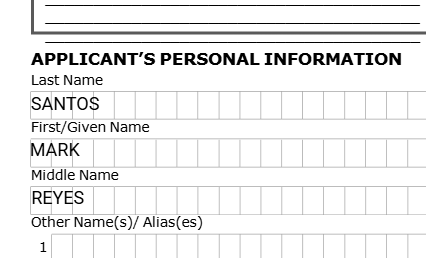
Repeat this for each field you need to fill. You can add as many text objects as needed and move them independently.
3. Adjust character spacing
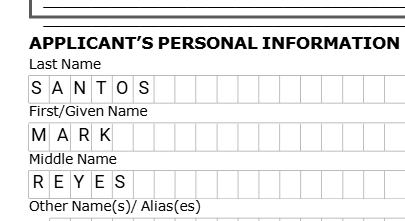
Many government forms use individual letter boxes where each character must sit in its own cell. To match this layout, select your text object and adjust the Character Spacing value in the right-side inspector panel. Increase the value until each letter aligns with its own box. The exact value depends on the font size and box width of the form you are filling.
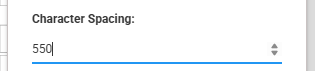
Once set correctly, each letter will be evenly distributed across the boxes, giving the form a clean, professional appearance.
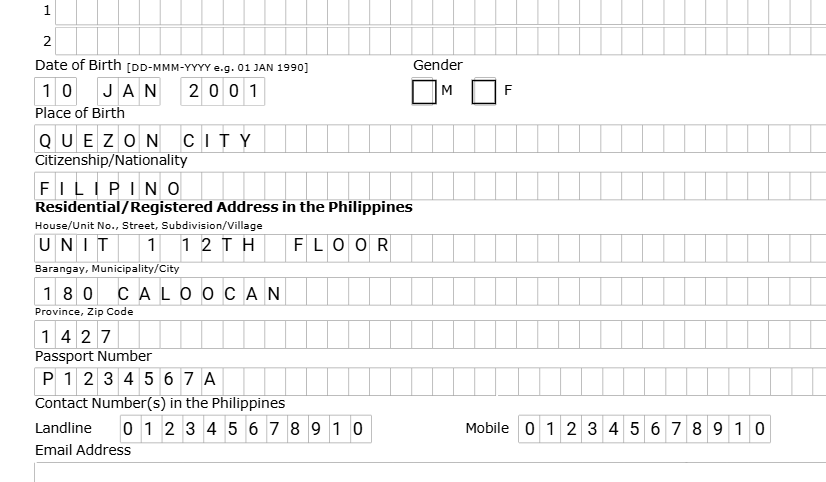
Continue filling all remaining fields across the form, adjusting character spacing per field as needed. Each text object can have its own spacing value independently. Notice on the gender section, we used checkbox AcroForm fields as it's more appropriate.
4. Add a signature
For fields that require a signature, open the toolbar dropdown and select Signature. The Draw Signature dialog will open where you can draw your signature with your mouse or touchscreen. Adjust the stroke color and width to your preference, then click Add to Document to place it on the page. You can then drag and resize it to fit the signature field on the form.
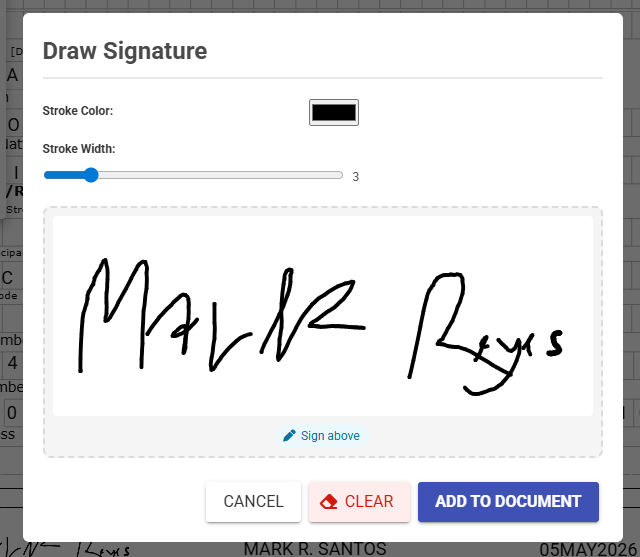
Once placed, the signature sits on the page like any other object, so you can reposition or resize it until it fits perfectly over the signature line.

5. Download
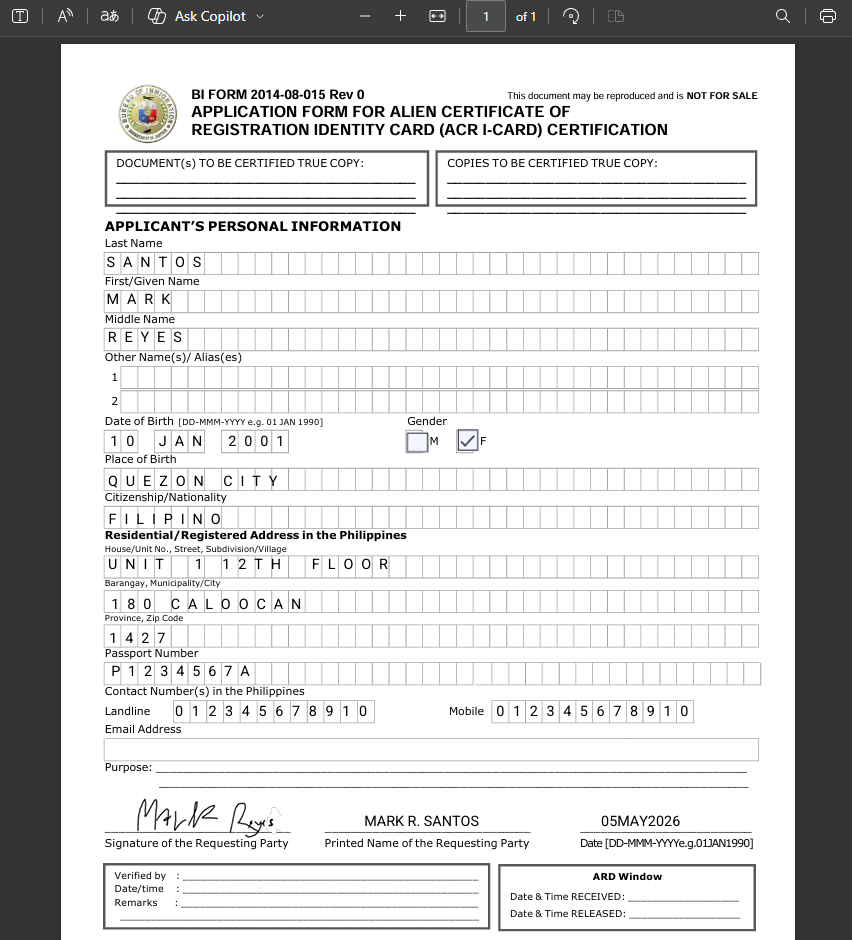
Once all fields are filled and your signature is in place, click Preview to review the completed form, then click Download to save the PDF to your device. No watermark is added and no account is required.
Tips
- Letter-box forms need character spacing: Most government forms print individual boxes for each character. Use the Character Spacing field in the inspector to spread your text across them. Start with a high value and fine-tune it until each letter sits in its own box.
- Font size matters: Match the font size to the height of the letter boxes. A font that is too large will overflow the boxes, and one that is too small will look out of place. Click a label text nearby to see what font size the original form uses and match it.
- One text object per field: Place a separate text object for each field rather than trying to cover the whole form with one block. This gives you independent control over position, font size, and spacing per field.
- Password-protected PDF? You will need the document password to open and edit it. The editor will prompt you when you upload the file.
More articles

How To Edit A PDF Online For Free No Sign Up With Privacy In Mind
Learn how to edit PDF files online for free privately with our easy-to-use tools.

How To Edit Text In A PDF Without Adobe Acrobat For Free
Edit text in any PDF for free, directly in your browser, without needing Adobe Acrobat or any install.

How To Edit AcroForms In A PDF Online For Free
Stop struggling with un-editable PDF forms. Discover how to fill, edit, and save AcroForms online for free using local-first tools that don't require expensive software subscriptions.