How To Extract Images From PDFs Online For Free
Extract embedded images directly in your browser online with ease for free.
Background
Extracting images from PDFs can be a hassle. With our free tool, you can extract images from your PDFs online, without any watermark, and preview results before downloading.
- Navigate to the Extract Images from PDF page
- (Optional) Choose output options (page range, JPG/PNG output format, etc.)
- Upload a PDF
- Click Extract to preview results
- Download a single image or Download All as a zip
Step-by-step
1. Open the Extract Images Tool
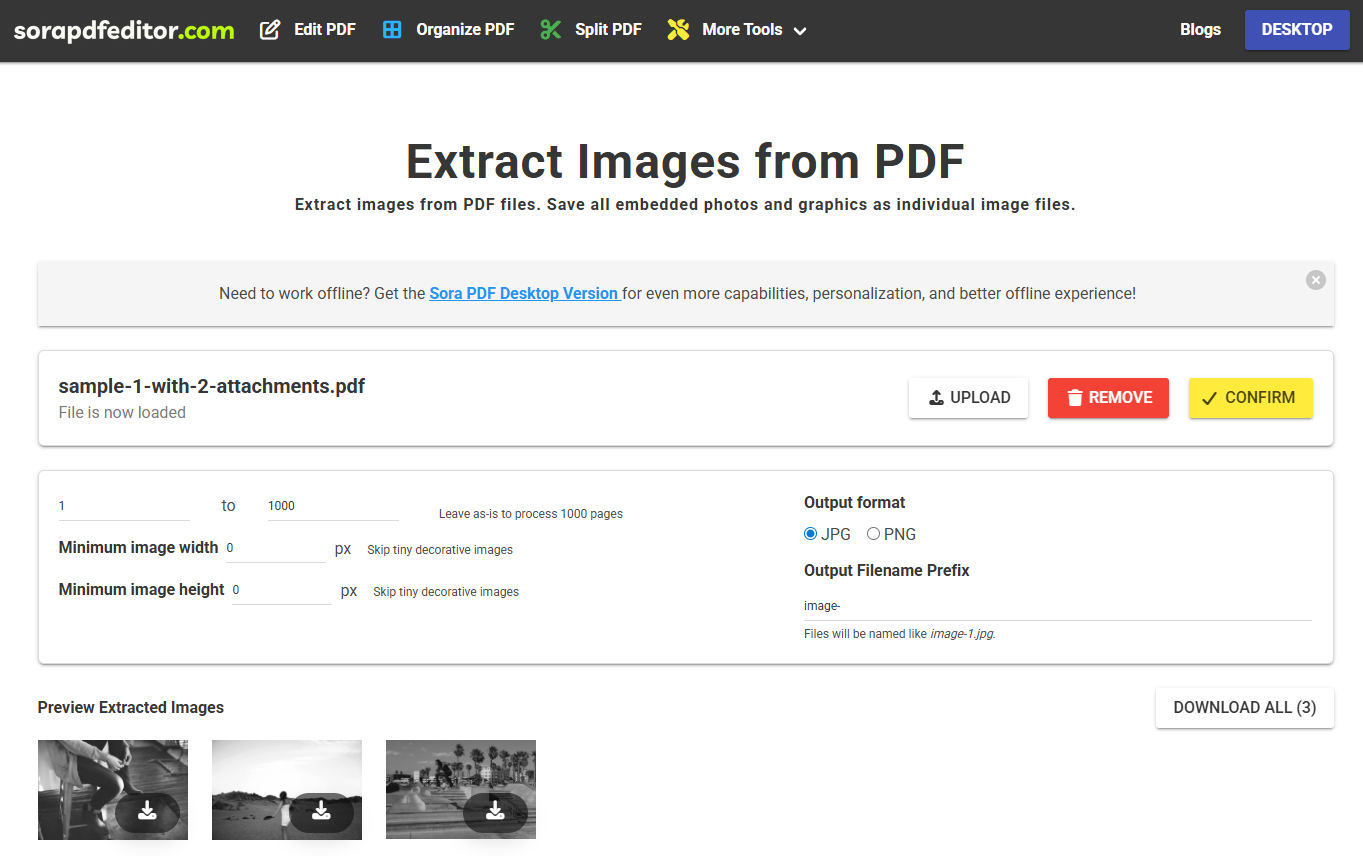
Navigate to the Extract Images from PDF page. You will be presented with the following screen:
2. Upload Your PDF
Click Upload your PDF file.
3. (Optional) Pick Output Options
Customize how you would like to extract your images.

- Page Range: Define the pages to extract images from i.e "1-3" pages from a 5 page PDF
- Minimum Image Width: Set the minimum width for images to extract
- Minimum Image Height: Set the minimum height for images to extract
- Output Format: What image export format to use: JPG or PNG
- Prefix: Filename prefix for downloads i.e "my-pdf-image_0.png"
4. Extract & Preview
Click Extract. Found images will appear below the form. If none are found, an empty-state message will appear.
5. Download Results
You can either download your files individually by clicking on the Download Button on each images or use the Download All button to export all images as a zip file.
Tips
- Password-protected PDF? If a PDF is password-protected, you will need to enter the password to continue.
More articles
How To Extract Attachments From PDFs Online For Free
Extract embedded attachments directly in your browser online with ease for free.
How To Edit A PDF Online For Free No Sign Up With Privacy In Mind
Learn how to edit PDF files online for free privately with our easy-to-use tools.