How To Highlight Text And Take Notes On A PDF Online
Learn how to annotate, highlight, and add sticky notes to any PDF directly in your browser. This 3-minute guide covers the best free online tools and built-in browser features to help you study or collaborate without downloading heavy software.
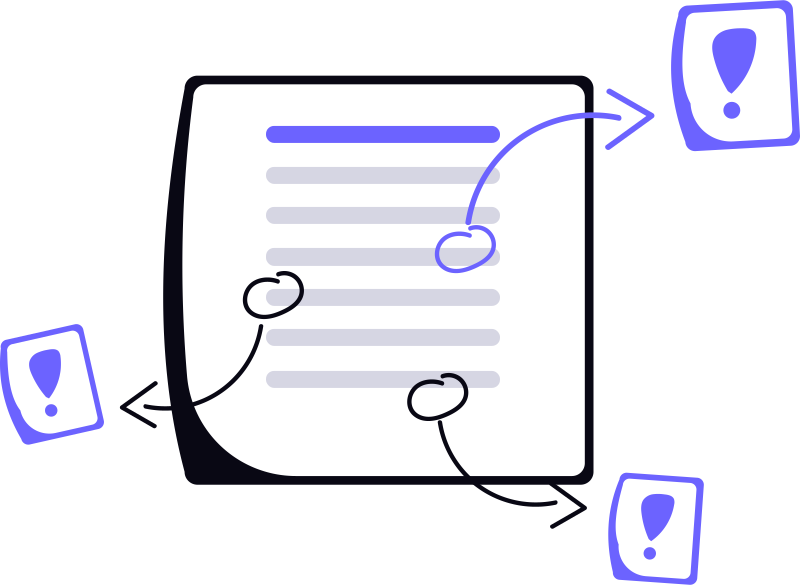
Background
If your goal is to study a PDF, review a document, or leave feedback for someone else, you usually do not need to edit the original text at all. In most cases, the faster workflow is to annotate the page using a highlight, a freehand ink mark, or a text comment. Those three tools cover most note-taking and review scenarios without changing the underlying content.
In the Edit PDF tool, all three are available from the annotation toolbar. You can mark important passages with a translucent highlight, draw arrows or circles with ink, and drop a sticky-note style text comment anywhere you want readers to pause and read your note.
- Use highlight when you want to mark existing text without covering it
- Use ink when you want to draw arrows, circles, underlines, or handwritten marks
- Use text comment when you need to attach an actual note to a location on the page
- Everything runs locally in your browser, with no file upload and no account required
Why annotate, highlight, or take notes in a PDF?
These tools are useful because they let you add meaning to a PDF without rewriting the original document. That makes them a better fit than full editing when you only need to study, review, explain, or collaborate.
- Studying or research: highlight key passages, mark definitions, and leave short notes so you can come back to important sections quickly.
- Work review: comment on reports, proposals, or internal documents without changing the source content or layout.
- Contracts and forms: draw attention to a clause, required field, or suspicious detail before signing or sending the file.
- Team collaboration: leave feedback for another person so they can understand exactly what needs attention on the page.
- Teaching and tutoring: mark homework, add margin notes, and point at specific lines or figures during review.
- Personal organization: keep notes inside the PDF itself instead of in a separate document that can get lost later.
Annotate your PDF with these tools
Highlight
Highlight is the best choice when you want to call out existing text while keeping the page readable. It places a semi-transparent color band over the words, which makes it ideal for studying, proofreading, contract review, and team feedback. If you are reading a long document and only want to surface the key lines later, highlight is usually the cleanest tool.
It is also the least visually noisy of the three tools covered here. A highlight says "look here" without adding extra shapes or icons around the content. That makes it a strong default for textbooks, reports, and forms where you want the original page to stay easy to scan.
Ink
Ink is the flexible option. It records a freehand stroke, so you can underline text, draw arrows toward a paragraph, circle a diagram, or sketch a quick note in the margin. If you are reviewing a layout, correcting homework, or giving live feedback during a meeting, ink often feels faster than placing multiple precise shapes.
Ink is especially useful when a note needs visual direction. For example, a highlight can show which sentence matters, but an ink arrow can show why it matters or which nearby figure or field it relates to. That makes it a good companion to highlights instead of a replacement for them.
Text comment
A text comment is the right tool when you need to attach actual written feedback to the page. Unlike highlight or ink, which are mostly visual, a text comment gives you a place to explain a concern, ask a question, or leave instructions for the next person reviewing the PDF.
If you want your notes to travel clearly with the document, text comments are usually the best fit. They are better for collaboration than long ink scribbles, and better for context than a highlight by itself.
Tips
- Use each tool for a different job: highlight for important text, ink for visual emphasis, and text comment for actual written feedback.
- Combine tools when needed: the cleanest review notes often use a highlight plus a short text comment rather than one oversized annotation trying to do everything.
- Keep the page readable: if you are marking up a shared document, avoid too many thick ink strokes over the same area because they can make the original text harder to review.
- Password-protected PDF? You will need the document password to open and annotate it. The editor will prompt you when you upload the file.
More articles

How To Edit Annotations In A PDF Online For Free
Learn how to add, delete, or modify PDF annotations without a monthly subscription. This guide covers free tools for highlighting, commenting, and marking up documents directly in your browser
How To Edit A PDF Online For Free No Sign Up With Privacy In Mind
Learn how to edit PDF files online for free privately with our easy-to-use tools.
Why Text Is The Hardest Part Of Editing PDFs
Unlike Word documents, PDFs don't store text in 'sentences' or 'paragraphs.' Explore the underlying architecture of the PDF format to understand why text manipulation is a complex game of glyphs, coordinates, and embedded fonts.