How To Edit Table Of Contents From PDFs
Edit table of contents directly in your browser with ease for free.

Screenshot placeholder — replace with a real UI screenshot when ready.
- Navigate to the Edit page, upload a PDF file and get redirected to the Editor page
- Activate the TOC editor using the sidebar/TOC button tool which opens the left panel
- Edit destination, rename, move up or down, add children or delete any TOC item
- Preview and download when satisfied
- View your updated TOC using a PDF viewer
Background
Editing table of contents from PDFs can be a hassle. With our free tool, you can edit table of contents from your PDFs online, without any watermark, and preview results before downloading.
Step-by-step
1. Open The Editor Tool
Navigate to the Edit page. You will be presented with the following screen:
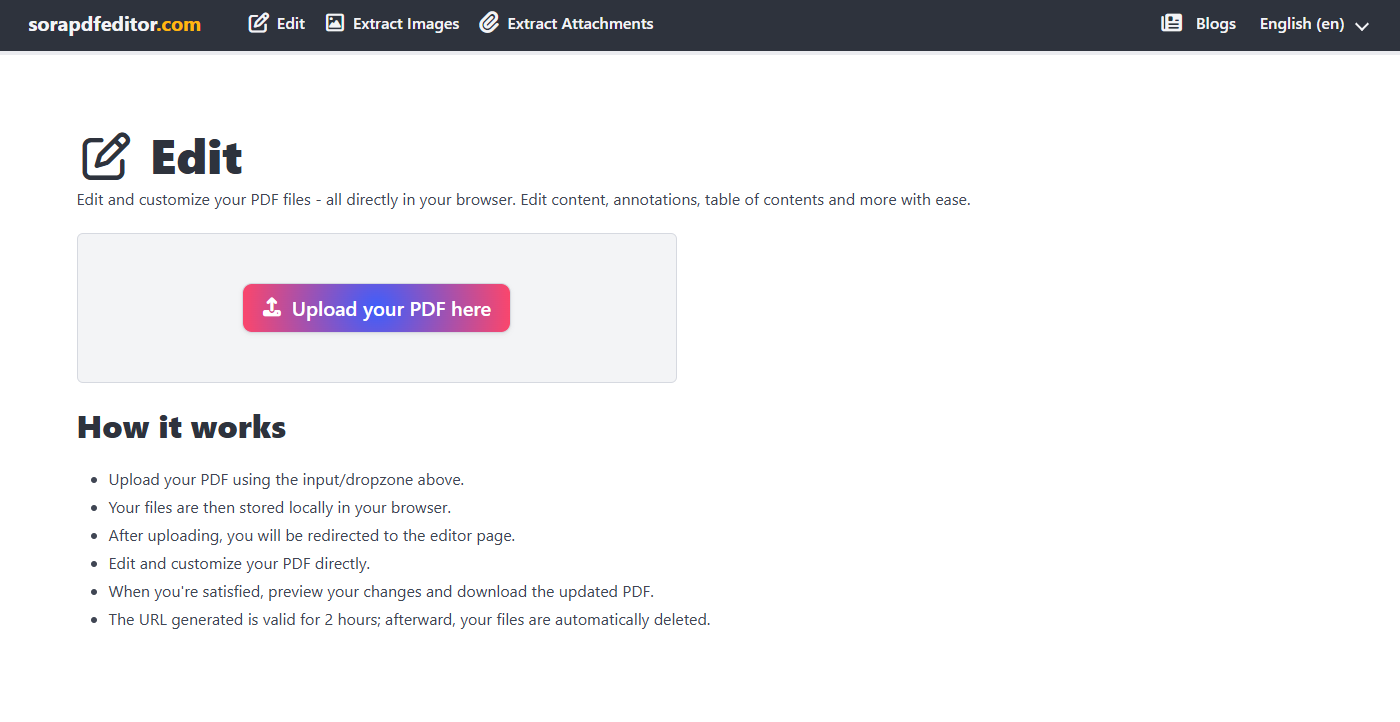
Upload a PDF file in the input drop zone. You should be redirected to the Editor page. You will be presented with the following screen:
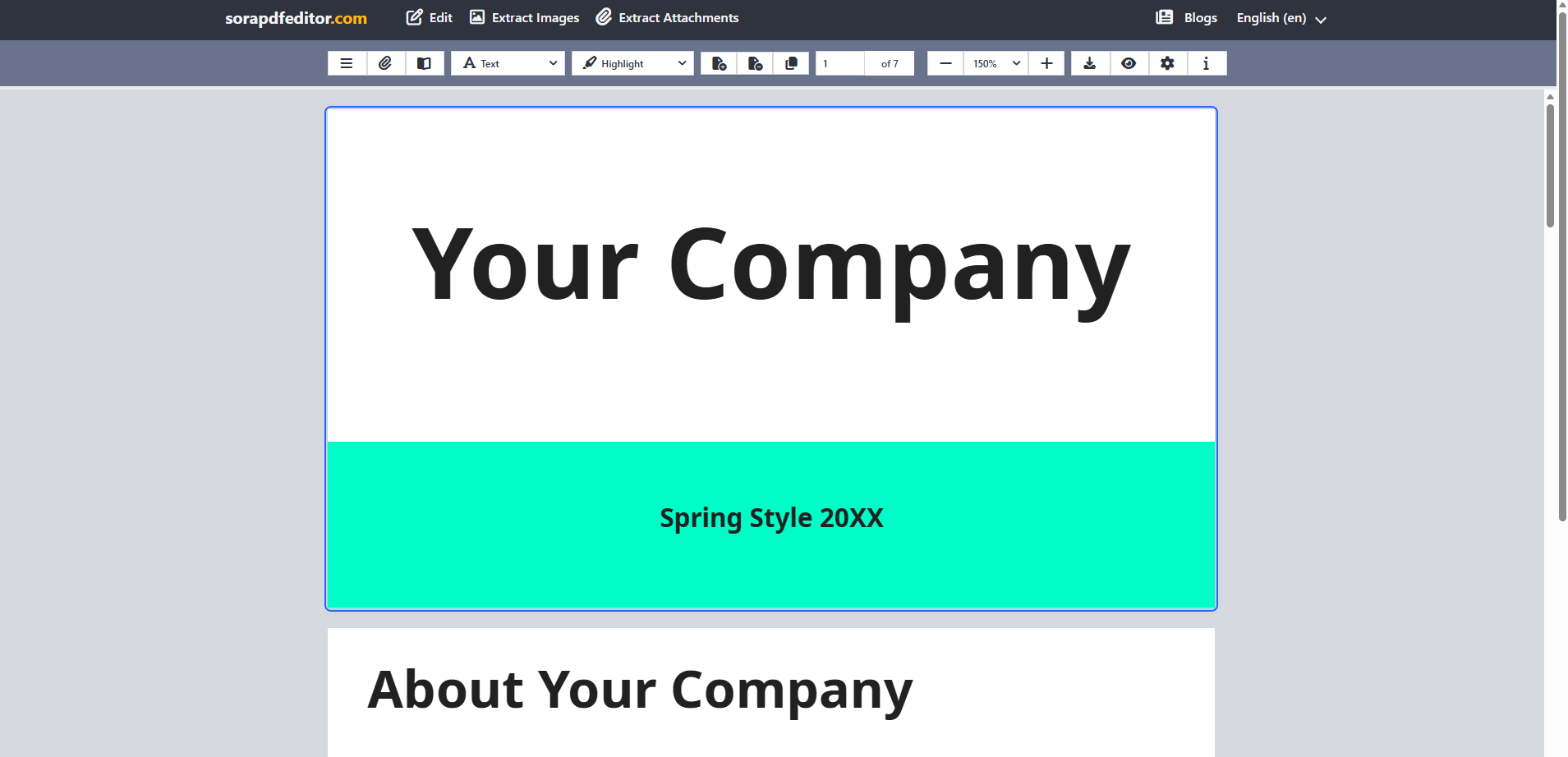
2. Activate The TOC Editor In The Left Panel
Click either the Toggle Sidebar or the Add Table Of Contents button to open the left panel which can be found at the top left of the screen.
3. Edit Table of Contents Item Properties
Each TOC item has its own settings. Click the three-dot menu beside an item to open the available actions.
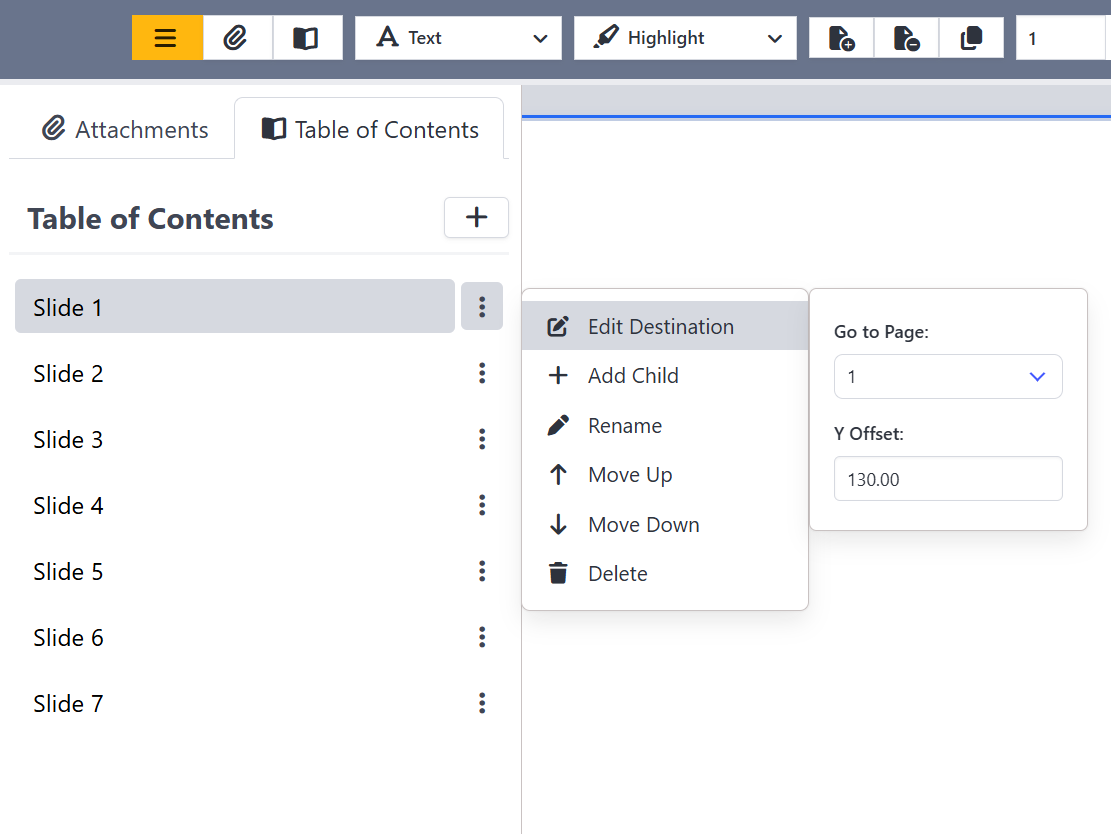
- Add Parent: (Found beside the title label) Inserts a new top-level item into the TOC.
- Edit Destination: Change where this item navigates in the PDF. You can select the target go to page and/or fine-tune the vertical position using the Y Offset.
- Add Child: Create a nested item under the selected entry. This is useful for building multi-level or hierarchical TOC.
- Rename: Update and rename the title of the item.
- Move Up: Move the item higher in the list to adjust the reading order.
- Move Down: Move the item lower in the list to adjust the reading order.
- Delete: Removes the selected item from the document.
4. Preview And Download results
You can either click the Download or Preview button to export your changes which can be found at the top-right corner.

5. View
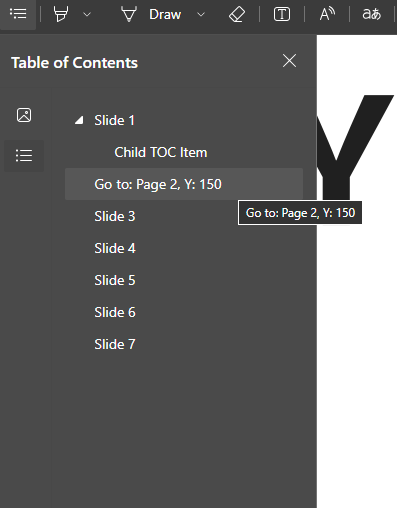
View your updated TOC (and navigate to each item) using a PDF viewer.
Tips
- Password-protected PDF? If a PDF is password-protected, you will need to enter the password to continue.
- You can click on any TOC item to navigate to the corresponding section in the PDF.