How To Edit Attachments From PDFs
Edit Attachments directly in your browser with ease for free.
Screenshot placeholder — replace with a real UI screenshot when ready.
- Navigate to the Edit page, upload a PDF file and get redirected to the Editor page
- Activate the attachment editor using the sidebar/add attachment button tool which opens the left panel
- Edit attachments by inserting, renaming, downloading, or deleting as needed
- Preview and download when satisfied
- View your updated attachments using a PDF viewer
Background
Editing attachments from PDFs can be a hassle. With our free tool, you can edit attachments from your PDFs online, without any watermark, and preview results before downloading.
Step-by-step
1. Open The Editor Tool
Navigate to the Edit page. You will be presented with the following screen:
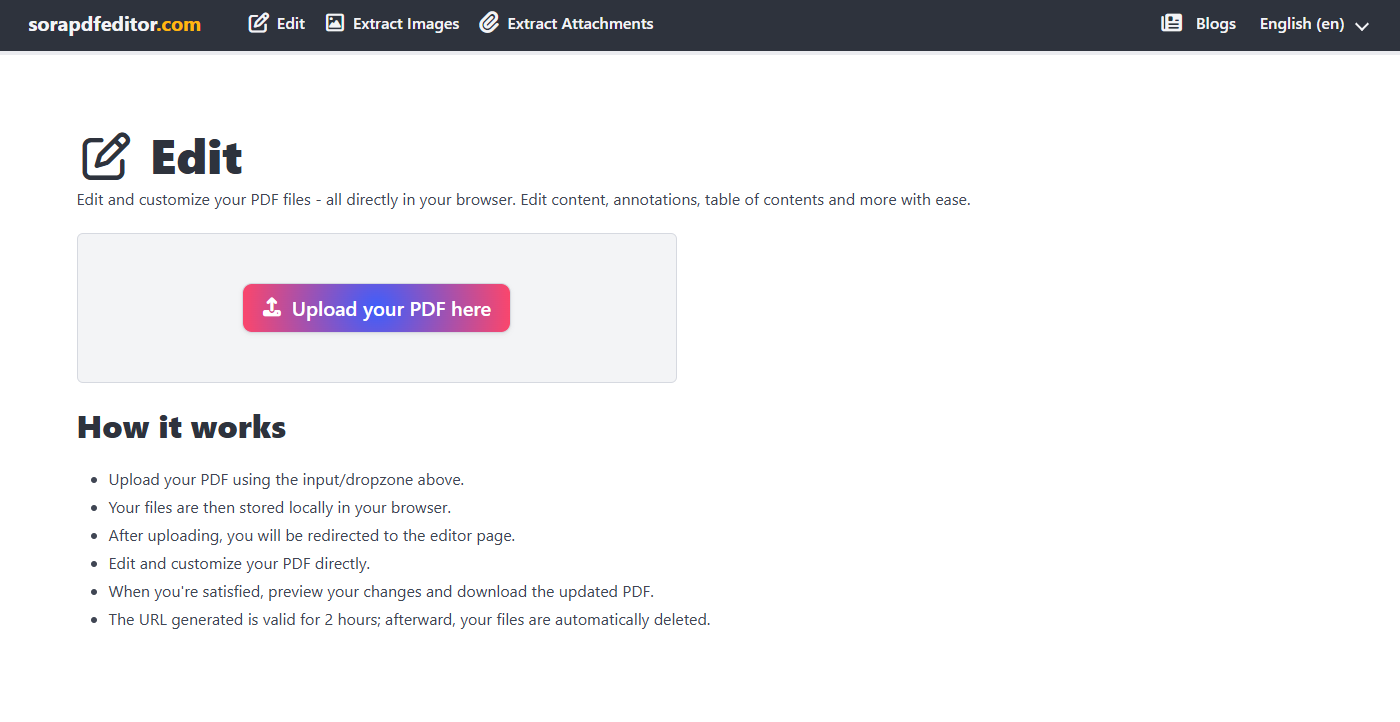
Upload a PDF file in the input drop zone. You should be redirected to the Editor page. You will be presented with the following screen:
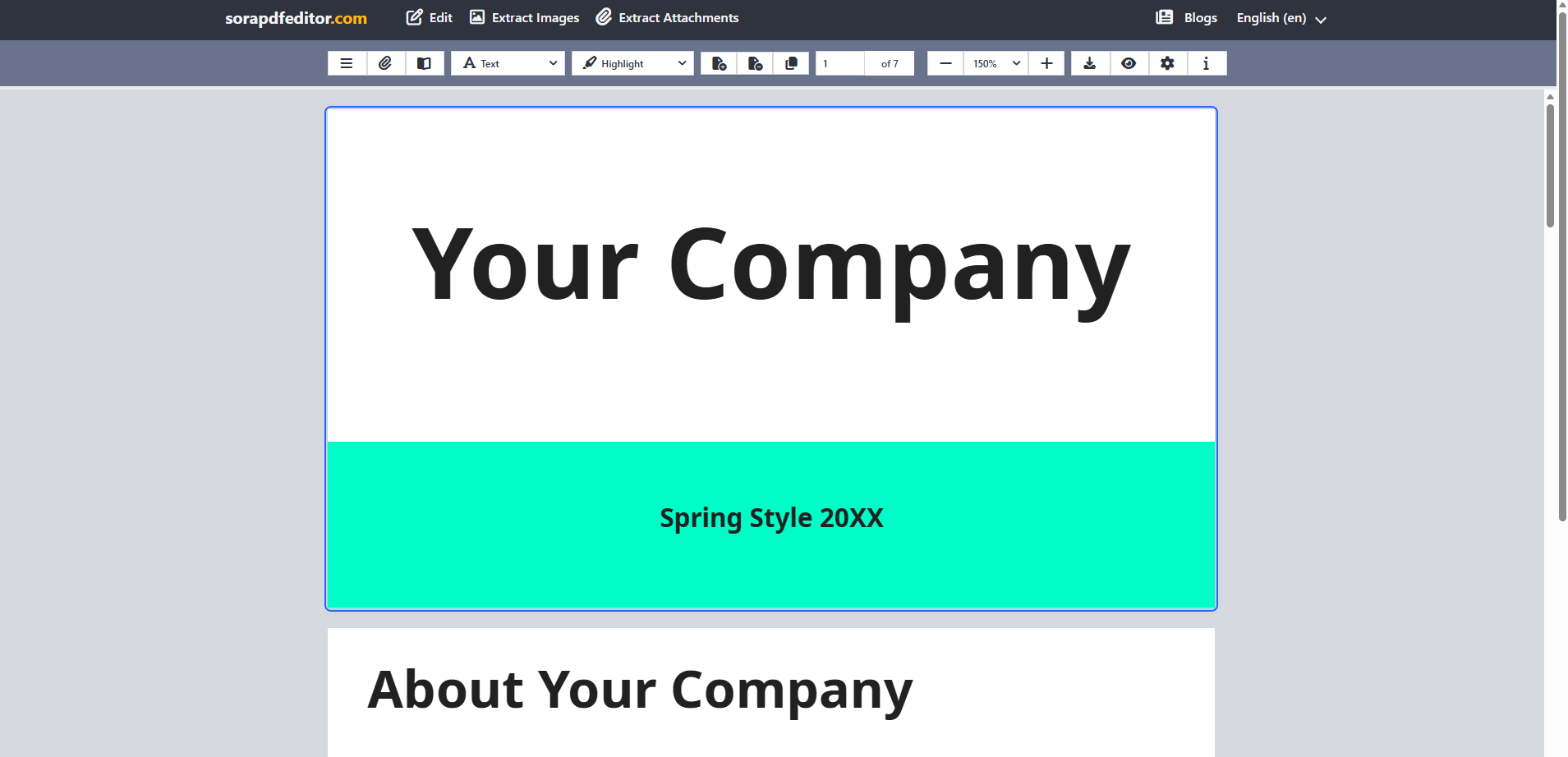
2. Activate The Attachments Editor In The Left Panel
Click either the Toggle Sidebar or the Add Attachments button to open the left panel which can be found at the top left of the screen.
3. Edit Attachment Item
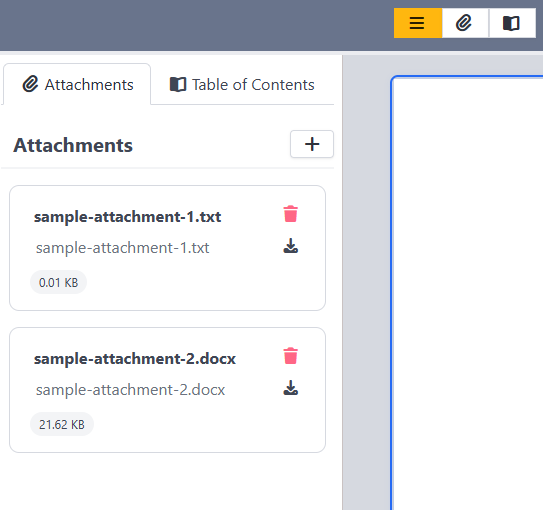
- Add Item: (Found beside the title label) Inserts a new item into the document list.
- Delete: Removes the selected item from the document.
- Download: Click either the file name or the download button to download the attachment.
- Rename Description: Double click the description text to rename it.
4. Preview And Download results
You can either click the Download or Preview button to export your changes which can be found at the top-right corner.
5. View
View your updated attachments using a PDF viewer.
Tips
- Password-protected PDF? If a PDF is password-protected, you will need to enter the password to continue.
- Some PDF viewers may not support viewing attachments. If you want to verify that attachments exists, you can do so using the Extract Attachments tool or use a dedicated PDF viewer.